How to use the Lead Time Advisor to manage supplier performance
Late deliveries are one of the biggest causes of stockouts. Learn how to use the Lead Time Advisor to compare planned vs. actual supplier lead times and take action before it hits your stock.
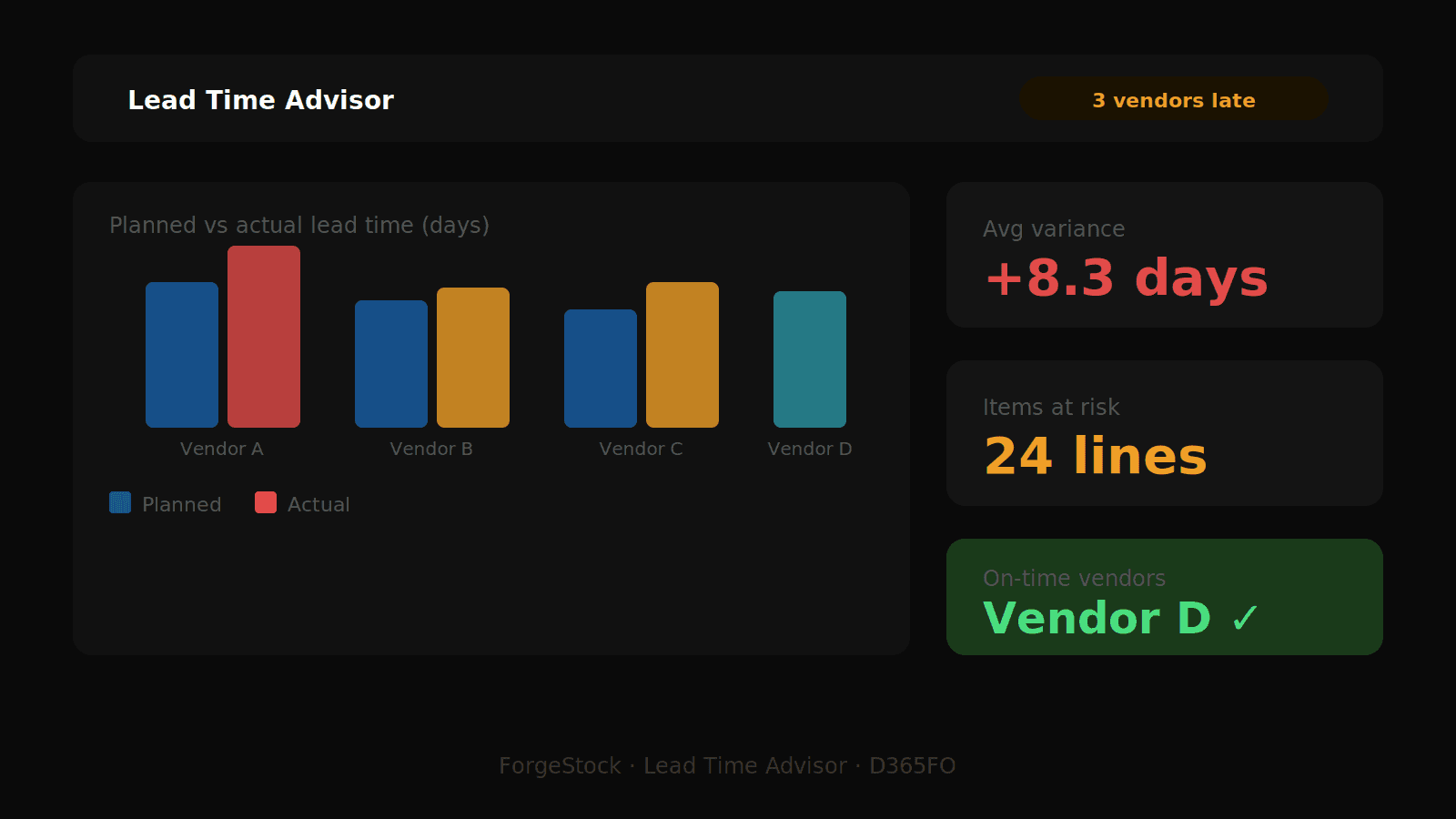
A supplier promises 14 days. Your item coverage is set to 14 days. But the last five deliveries took 21 days. That gap — between planned and actual lead time — is one of the most common and least visible causes of stockouts. The Lead Time Advisor in ForgeStock makes it visible.
What the Lead Time Advisor does
The advisor analyses your open purchase order lines and compares:
Planned lead time — the lead time configured in item coverage or default order settings in D365FO
Historical average lead time — calculated from fully invoiced purchase orders for the same item and vendor over the past 12 months
Variance — the gap between the two, in days
Lines where actual lead time consistently exceeds planned lead time are flagged, so your procurement team can act before a late delivery becomes a stockout.
Before you start
The historical average lead time is only as good as your purchase order history. The advisor requires fully invoiced purchase orders for the item-vendor pair within the lookback period. New vendors or new items with no invoice history will show 0 for historical average — this is expected and not an error.
Step 1: Run the batch job
In D365FO, go to: Inventory management → Periodic tasks → Inventory Optimizer → Run Lead Time Advisor
Parameters:
Site — select the site to analyse
Lookback period (months) — default is 12 months. Reduce to 6 months if you want to focus on recent supplier performance only
Include ABC classes — recommended to include all classes on first run
Click OK to run. The job reads open purchase order lines and invoiced purchase history, then populates the advisor results.
Step 2: Open the advisor
Navigate to: Inventory management → Inquiries and reports → Inventory Optimizer → Lead Time Advisor
If the form is empty after the job has run, confirm that open purchase order lines exist for stocked items with a remaining open quantity greater than zero. Category or service lines without an item number are excluded by design.
Step 3: Read the results
The grid shows one row per open purchase order line. Key columns:
Item number / Item name — the purchased item
Vendor account / Vendor name — the supplier
Promised delivery date — the date on the PO line
Planned lead time (days) — from item coverage or default order settings
Historical average lead time (days) — derived from invoiced PO history
Variance (days) — historical average minus planned lead time. Positive means the supplier is consistently slower than planned.
ABC/XYZ class — so you know the item's planning priority
Step 4: Prioritise by variance
Sort by Variance descending to see which item-vendor combinations have the largest gap between planned and actual lead time.
Focus first on:
High variance items in ABC class A or B — these carry the most stockout risk
Lines where the promised delivery date is already past — these are overdue and need immediate follow-up
Step 5: Take action
The Lead Time Advisor is a diagnostic tool — it surfaces the problem, and your procurement team takes action. Typical responses:
Update item coverage lead time — if a supplier is consistently delivering in 21 days instead of 14, update the planned lead time in item coverage to reflect reality. This feeds directly into the Safety Stock & ROP Simulator and improves your reorder point calculations.
Go to: Master planning → Setup → Coverage → Item coverage → find the item → update Lead time (purchase).
Contact the supplier — use the variance data as evidence when discussing delivery performance. A positive variance of 7+ days on an A item is a strong case for a supplier review meeting.
Expedite open orders — for lines where the promised date has passed, contact the supplier immediately and flag the line in the MRP Exception Advisor for follow-up.
Step 6: Feed results into the Safety Stock Simulator
The Lead Time Advisor stores historical average lead times in the system. When you next run the Safety Stock & ROP Simulator, ForgeStock uses these historical averages as the lead time source — giving you more accurate safety stock calculations than relying on planned lead time alone.
This is the key connection between the two tools: better lead time data → better safety stock → fewer stockouts.
How often should you run it?
Weekly for A items with known supplier performance issues
Monthly as part of your standard procurement review
After any supplier change — new vendor, new contract, or new item-vendor assignment
Tips
If planned lead time shows 0 for most items, set up Lead time (purchase) in item coverage or default order settings — the simulator cannot calculate meaningful reorder points without it
Items showing 0 for historical average are not a problem — they simply have no invoiced history yet. Monitor them manually until enough history builds up.
Use the vendor filter to pull all lines for a specific supplier before a performance review meeting — instant data, no manual reporting needed
Ready to optimize your inventory?
See how ForgeStock eliminates overstock, prevents stockouts, and brings intelligence to your D365FO — it only takes a conversation to get started.