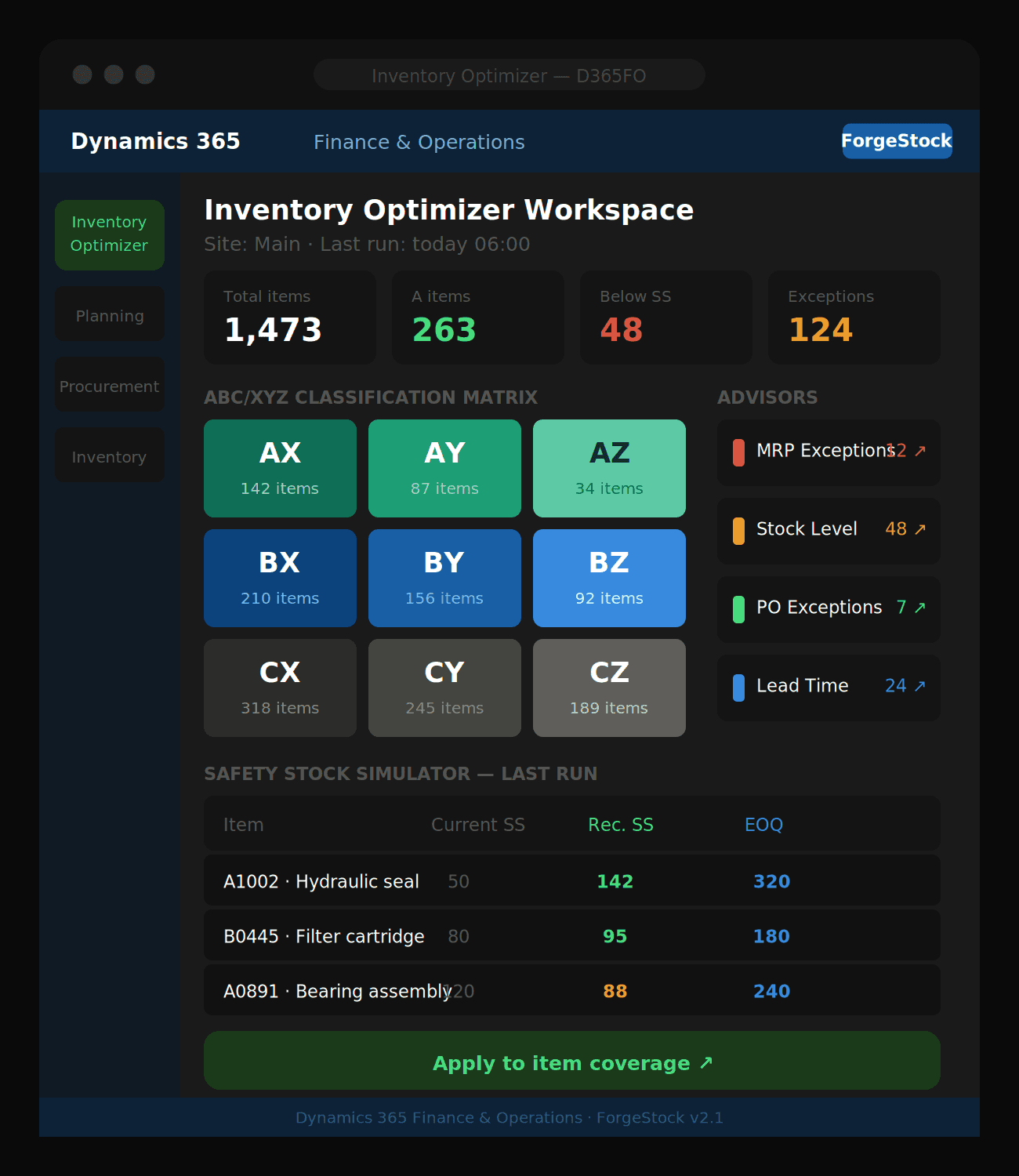
How to resolve MRP exceptions with ForgeStock
Feedback is gold in the early days. Discover the best ways to collect, organize, and implement user input using tools built into the Clario template.
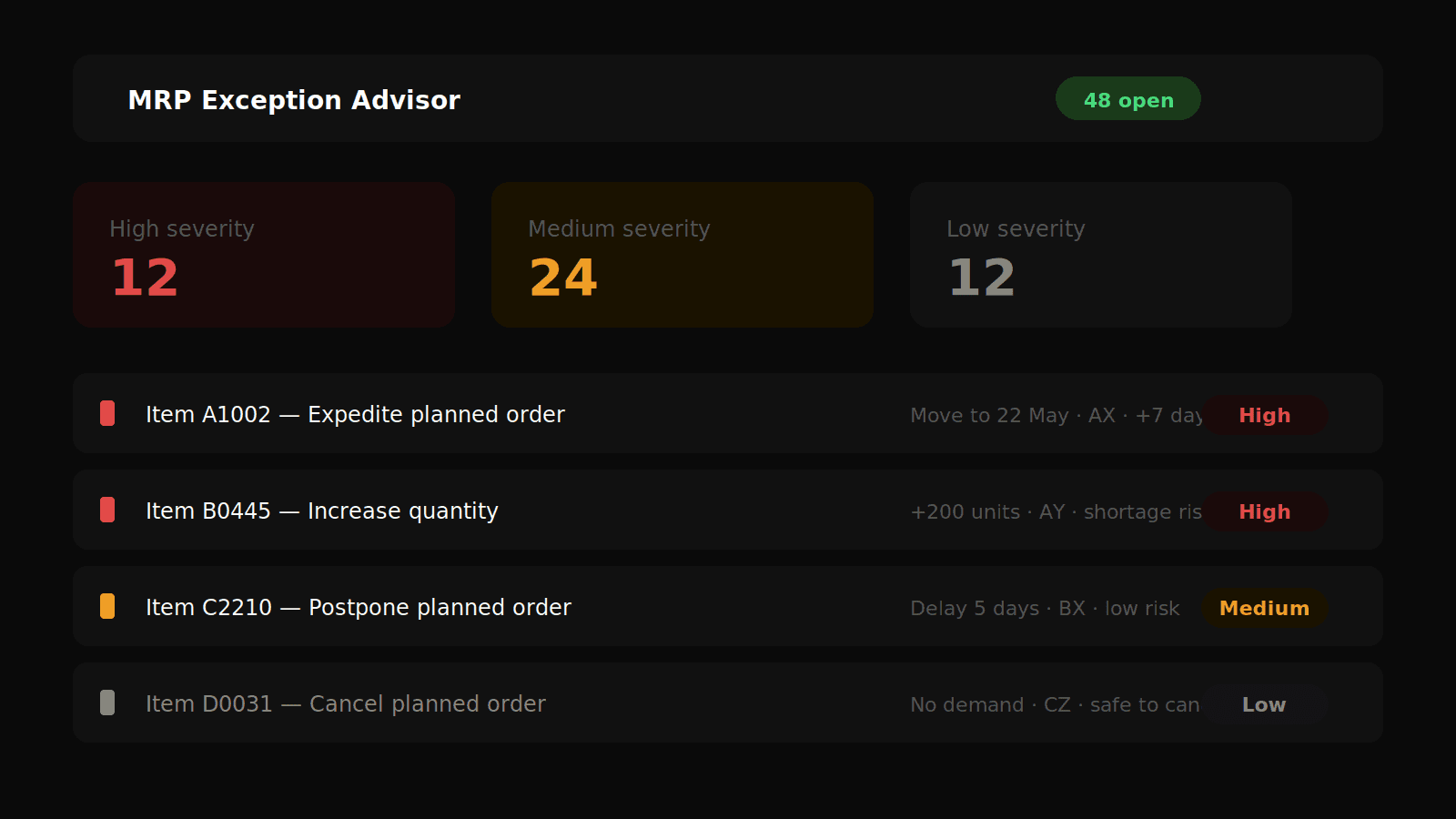
Every D365FO planner knows the pain — hundreds of MRP messages sitting in the system, no clear priority, no easy way to know what actually needs action today. The MRP Exception Advisor in ForgeStock fixes that.
What is an MRP exception?
When D365FO runs master planning, it generates action messages — suggestions to create, expedite, postpone, or cancel planned orders. Left unmanaged, these pile up fast. ForgeStock processes these messages, scores them by severity, and presents them in a single actionable view.
Exception types include:
Expedite — a planned order needs to be moved earlier to avoid a shortage
Postpone — a planned order can be delayed without risk, freeing up cash
Increase quantity — demand has grown and the planned quantity is insufficient
Decrease quantity — planned quantity exceeds net requirements
Cancel — the planned order is no longer needed
Before you start
Make sure master planning has been run recently in D365FO. The MRP Exception Advisor reads from planned order action messages — if planning has not run, there will be nothing to process.
Step 1: Run the batch job
In D365FO, go to: Inventory management → Periodic tasks → Inventory Optimizer → Run MRP Exception Advisor
Set the parameters:
Site — select the site to analyse
Planning run date — typically today or the date of the last master planning run
Include ABC classes — filter to A and B items only if you want to focus on high-value exceptions first
Click OK to run. The job scores and loads all exceptions into the advisor.
Step 2: Open the advisor
Navigate to: Inventory management → Inquiries and reports → Inventory Optimizer → MRP Exception Advisor
The dashboard tiles at the top show:
Total open exceptions
High / Medium / Low severity counts
Exceptions confirmed vs dismissed this week
Step 3: Prioritise by severity
ForgeStock assigns each exception a severity score based on:
The ABC class of the item — A item exceptions are always High or Medium
The urgency of the action — expedite exceptions score higher than postpone
The financial impact — based on unit cost and quantity affected
Sort the grid by Severity descending and work from the top. High severity exceptions on A items should always be reviewed first.
Step 4: Review each exception
For each exception, the grid shows:
Item number and name
Exception type — what action MRP is suggesting
Planned order date — when the order is currently scheduled
Suggested date — what ForgeStock recommends
Quantity — current vs recommended
ABC/XYZ class — so you always know the item's planning priority
Severity — High, Medium, or Low
Click any row to see the full detail, including the linked planned order.
Step 5: Confirm or dismiss
For each exception you have two options:
Confirm — you agree with the action. Mark the exception as Confirmed to signal to your team it has been reviewed and acted on. Navigate to the planned order in D365FO and make the change manually, or firm the order directly.
Dismiss — the exception is not actionable right now. Add a note explaining why (e.g. "Supplier confirmed delivery on original date") and dismiss it. Dismissed exceptions are hidden from the active view but remain in the audit log.
To confirm: select the row → click Confirm → add a note if needed → save. To dismiss: select the row → click Dismiss → add a reason → save.
Step 6: Track progress
The dashboard tiles update in real time as you confirm and dismiss exceptions. Aim to clear all High severity exceptions before end of day, Medium by end of week.
Tips for your team
Run the batch job every morning after the nightly master planning run, so planners start the day with a fresh exception list
Filter by planner or buyer if your team is divided by commodity or supplier
Use the ABC class filter to split work between senior planners (A items) and junior planners (B and C items)
Exceptions that reappear every day without being resolved usually signal a root cause issue — check coverage group settings or supplier reliability for that item
Ready to optimize your inventory?
See how ForgeStock eliminates overstock, prevents stockouts, and brings intelligence to your D365FO — it only takes a conversation to get started.