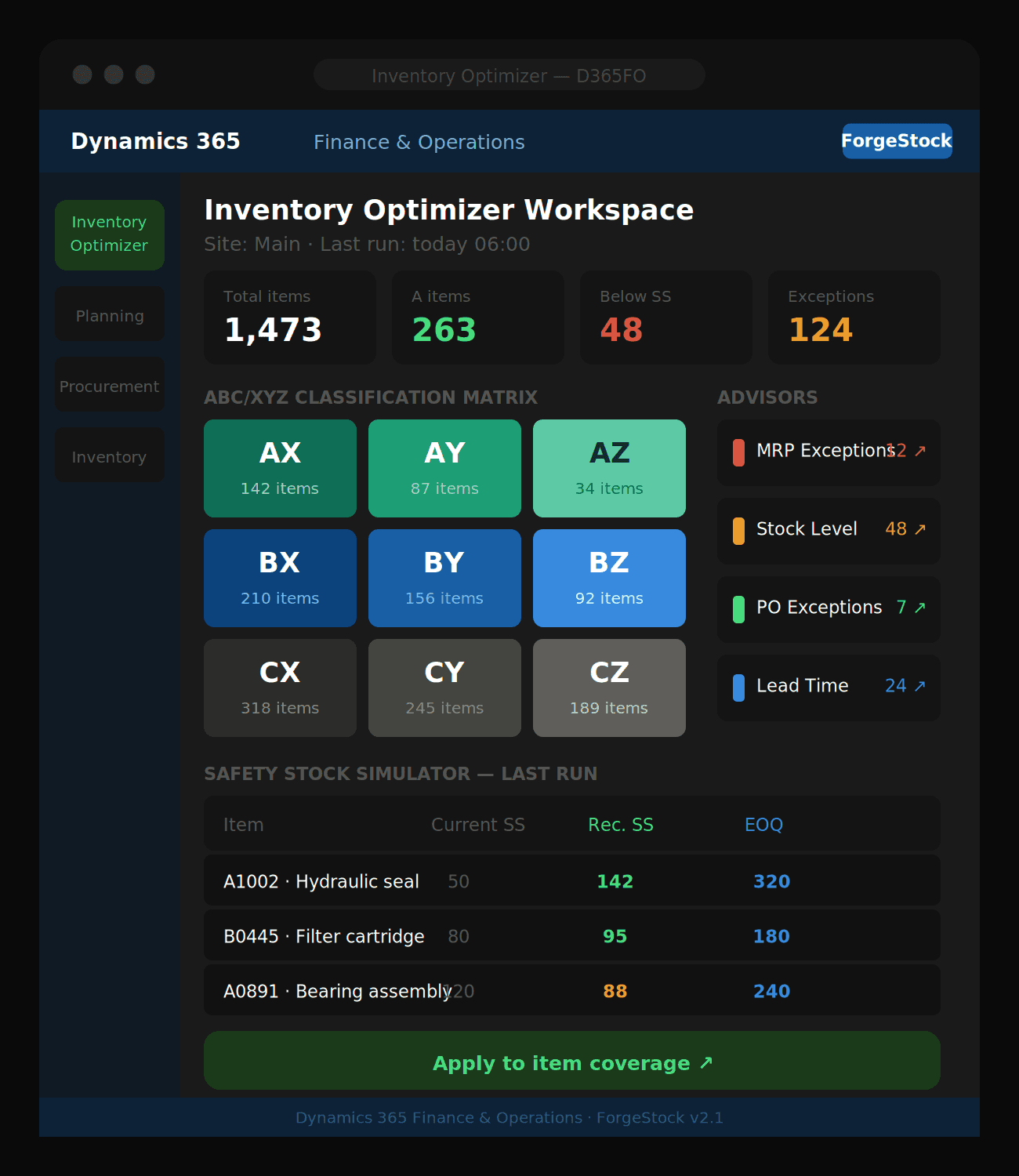
How to calculate optimal safety stock with ForgeStock
Learn how to use the Safety Stock & ROP Simulator to calculate statistically optimal safety stock and reorder points — and apply them directly to item coverage in D365FO.
Guessing your safety stock is one of the most expensive habits in inventory management. Too high and you tie up working capital. Too low and you face stockouts. The Safety Stock & ROP Simulator in ForgeStock replaces guesswork with statistics.
Before you start
The simulator depends on demand statistics generated by the ABC/XYZ Classification job. If you have not run that job yet, do that first. The simulator will show zero recommendations for all items until classification data exists.
What the simulator calculates
For each classified item, ForgeStock calculates:
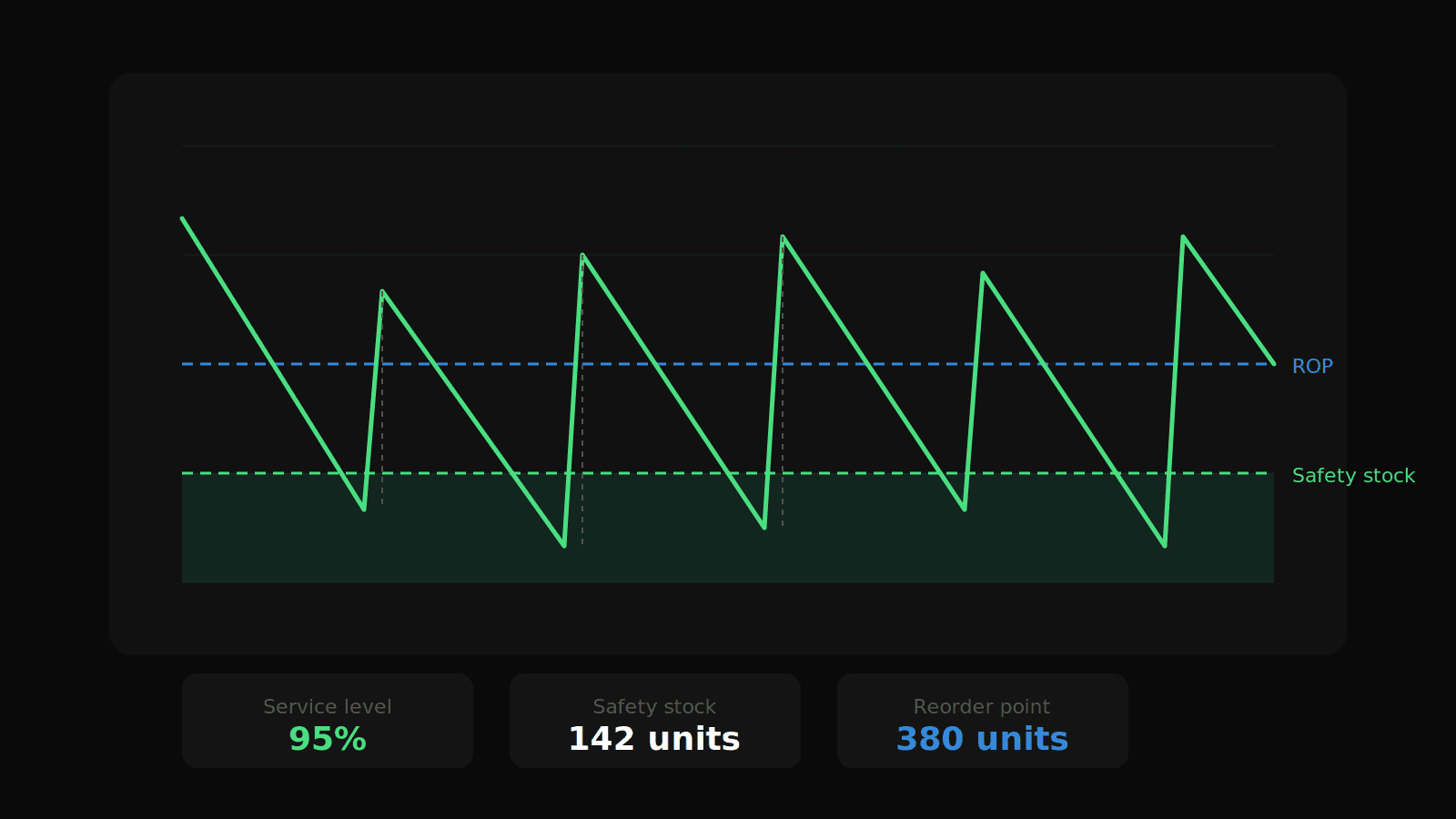
Safety stock — the buffer inventory needed to cover demand variability during lead time, based on your target service level
Reorder point (ROP) — the stock level at which you should place a replenishment order, calculated as average demand during lead time plus safety stock
The formula uses real demand variability from your sales history, not a fixed number of days coverage.
Step 1: Navigate to the simulator
In D365FO, go to: Inventory management → Inquiries and reports → Inventory Optimizer → Safety Stock & ROP Simulator
Step 2: Set the parameters
Site — select the site to simulate
Service level % — typically 95% for A items, 90% for B items, 85% for C items. A higher service level means more safety stock.
Lead time source — ForgeStock checks in this order: item coverage authorization fence → Lead Time Advisor historical average → planned lead time from item defaults → system default of 14 days. Run the Lead Time Advisor first for the most accurate results.
Lead time days override — optional. Enter a fixed number to override all lead time sources for this run.
Step 3: Run the simulation
Click Run simulation. The job processes all classified items for the selected site and populates the results grid.
Step 4: Review the results
The results grid shows for each item:
Current safety stock — what is set in item coverage today
Recommended safety stock — what ForgeStock calculates based on your service level
Current ROP — existing reorder point
Recommended ROP — statistically derived reorder point
Gap — difference between current and recommended, so you can prioritise which items need the most urgent update
Sort by Gap descending to find items most at risk first.
Step 5: Apply the recommendations
Select the items you want to update, then click Apply to item coverage. ForgeStock writes the recommended safety stock to the Minimum on-hand field and the recommended ROP to the item coverage record in D365FO — no manual data entry required.
Tip: Pair with the Lot Size Simulator
Safety stock and ROP tell you when to order. The Lot Size (EOQ) Simulator tells you how much to order. Together they define a complete replenishment policy:
When on-hand stock falls to the ROP → place an order
Order exactly EOQ units each time
Run both simulators and apply both sets of recommendations to get the full benefit.
How often should you re-run it?
Re-run the simulator whenever:
You re-run the ABC/XYZ Classification job (monthly recommended)
A supplier changes their lead time significantly
You adjust your target service level for a product category
You onboard a new major customer that changes demand patterns
Ready to optimize your inventory?
See how ForgeStock eliminates overstock, prevents stockouts, and brings intelligence to your D365FO — it only takes a conversation to get started.